How to Remove Unauthorized Delivery Links from Your Google Business Profile
Stop losing 30% of your margins to delivery apps you never signed up for. Learn the exact step-by-step process to remove unauthorized delivery links from your Google Business Profile.
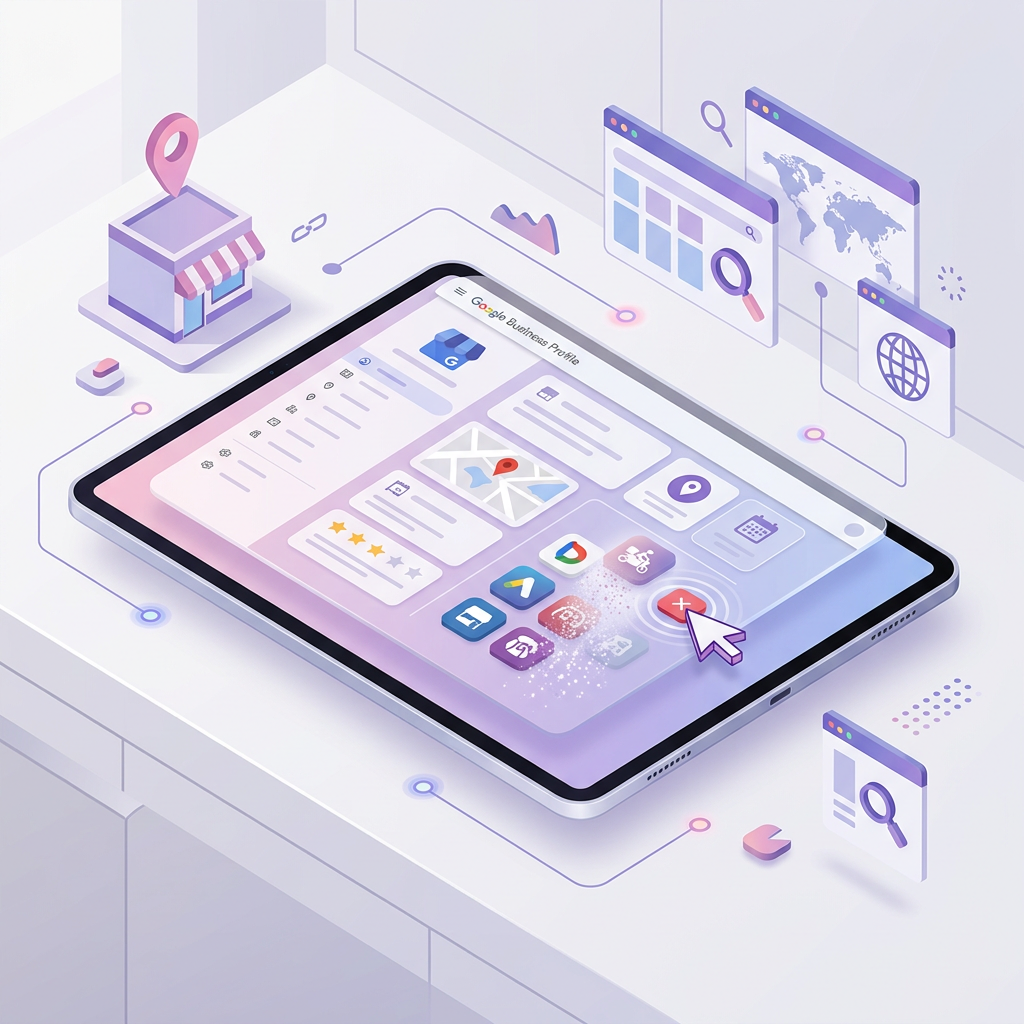
The 30% Margin Hijack
You check your restaurant's Google Business Profile and see a bright blue "Order Online" button. You click it, and it routes your customers to DoorDash, Grubhub, or UberEats. The problem? You never signed up for these services, or you explicitly canceled them months ago.
These unauthorized delivery links hijack your high-intent local search traffic, forcing your customers into a third-party ecosystem where you lose up to 30% of your margins. Worse, if a driver messes up the order, the customer blames your restaurant, and your Google reviews tank.
See how clearly your website communicates your location and services.
InspectRank reviews your local visibility signals and gives you a clear, prioritized report.
Get My Free ReportFor years, Google forced restaurant owners to play a maddening game of phone tag with delivery apps to get these links removed. Fortunately, Google recently updated its dashboard to give restaurant operators direct control over their ordering links. Here is exactly how to remove unauthorized delivery links from your Google Business Profile and take your margins back.
Why Do Unauthorized Delivery Links Appear?
Delivery apps are aggressive. They scrape the web for restaurant menus, create unauthorized listings on their platforms, and then use their authorized API partnerships with Google to inject their ordering links directly into your Business Profile.
Google allows this because they want to provide a frictionless experience for users searching for food. The algorithm assumes that if a restaurant is listed on a delivery app, the restaurant wants that link on their profile. It is up to you to tell Google otherwise.
How to Hide Third-Party Delivery Links Directly in GBP
Google recently rolled out a feature allowing you to hide specific third-party providers directly from your dashboard without having to beg the delivery app for permission.
Step 1: Log into the Google account associated with your Business Profile.
Step 2: Search for your exact business name on Google Search to bring up the merchant dashboard.
Step 3: Click the Food ordering icon.
Step 4: Select the unauthorized third-party provider you want to hide (e.g., DoorDash, Postmates).
Step 5: Click Show provider to customers.
Step 6: Toggle off Show for pickup and Show for delivery.
See how clearly your website communicates your location and services.
InspectRank reviews your local visibility signals and gives you a clear, prioritized report.
Get My Free ReportStep 7: Click Save and then Confirm.
This immediately hides the provider from the customer-facing side of your profile. However, the integration still technically exists in the background. To sever the connection entirely, you need to use the official removal process.
The Official 5-Day Removal Process
Google now mandates that all third-party food providers include a dedicated opt-out process. When you request a removal, the provider is legally required by Google's terms of service to process that request within five business days.
- Go to your Business Profile dashboard and click Food ordering.
- Select the provider you want to eliminate.
- Click Remove provider.
Clicking this button does not instantly delete the link. Instead, it redirects you to the third-party provider's designated opt-out landing page or support form. Fill out their specific form to initiate the 5-day countdown.
A simple flowchart showing the process: GBP Dashboard -> Click 'Remove Provider' -> Fill out Third-Party Form -> 5 Business Day Waiting Period -> Link Removed (or Escalate to Google Support).
What to Do When Delivery Apps Ignore Your Request
Delivery apps are notorious for ignoring these requests, dragging their feet, or claiming they "cannot find your account" because you never actually created one. If five business days pass and the link is still live on your profile, it is time to escalate.
| Scenario | Action Required | Expected Outcome |
|---|---|---|
| Provider ignores the 5-day deadline | File a "Third-Party Violation" report with Google Support. | Google manually severs the API connection for that specific provider. |
| Provider removes delivery but leaves pickup | Toggle off "Show for pickup" manually in the Food Ordering tab. | Immediate removal from the customer-facing profile. |
| Link disappears but returns weeks later | The app scraped your menu again. Repeat the violation report and demand a permanent domain block. | Google flags the provider's behavior regarding your specific Place ID. |
Setting a Preferred Ordering Link
If you actually use a third-party delivery service but want to prioritize your own in-house ordering system (like Toast, Square, or ChowNow) to save on commission fees, you don't have to delete the delivery apps entirely. You can set a "Preferred Link."
In the Food ordering menu, select your in-house system's link and click Set as preferred. Google will add a "Preferred by this business" badge next to your chosen link, pushing it to the top of the list and driving the majority of clicks to your higher-margin platform.
Protecting Your Profile Long-Term
Removing unauthorized delivery links is not a one-and-done task. Because these platforms constantly scrape the web, a new unauthorized link can appear at any time. Make it a habit to audit your Google Business Profile weekly. Check your ordering links, review your hours, and monitor for malicious suggested edits.
If you are tired of fighting the delivery apps and want to build a sustainable, high-margin ordering system, focus on optimizing your own website to capture local search traffic directly.
Sources & references
See what InspectRank finds on your website
Get a clear report covering website SEO, technical health, local visibility and AI search readiness.
Get My Free ReportRelated guides
Wheelchair Accessible SEO: Optimizing Your Google Business Profile for Physical Accessibility
Stop losing customers to uncertainty. Learn how to optimize your Google Business Profile for wheelchair accessibility and capture high-intent foot traffic.
Temporary Closure SEO: How to Manage Your Google Business Profile During Renovations
Learn how to properly manage your Google Business Profile during renovations, seasonal breaks, or emergencies using the 'Temporarily closed' feature without hurting your local SEO.
Google Business Profile Description SEO: How to Write a High-Converting 'From the Business' Section
Stop stuffing keywords into your Google Business Profile description. Learn how to write a 750-character 'From the business' section that actually converts.
Fake Google Review Attacks: How to Report and Remove Malicious 1-Star Ratings
Hit by a fake 1-star Google review attack? Learn the exact step-by-step process to report policy violations, escalate to support, and get malicious ratings removed.

Multi-Practitioner Google Business Profiles: Should Doctors and Lawyers Have Their Own Listings?
Should every doctor or lawyer in your practice have their own Google Business Profile? Learn Google's strict rules for individual practitioners, how to name them, and the SEO risks of getting it wrong.