Reserve with Google: How to Get the Blue 'Book Online' Button on Your Business Profile
Learn how to get the highly visible blue 'Book Online' button on your Google Business Profile using Reserve with Google, plus troubleshooting tips if your button is missing.
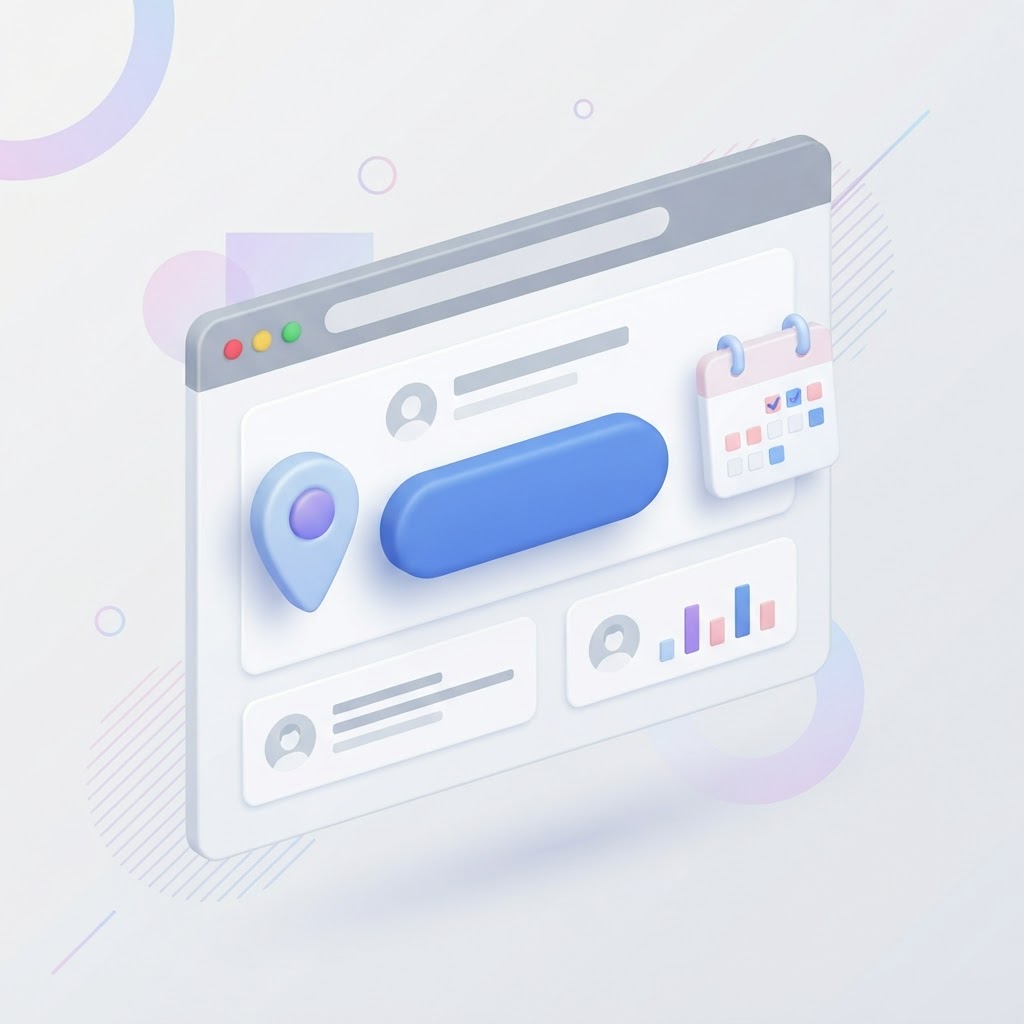
Why Your Google Business Profile is Missing the Blue Button
If you run a salon, fitness studio, or appointment-based business, you have probably noticed that some of your competitors have a massive, blue "Book Online" button on their Google Business Profile. Meanwhile, your profile might only have a standard, easily ignored text link. The difference is not a secret Google setting you forgot to check. It is a feature called Reserve with Google.
Reserve with Google is an API integration that allows customers to book appointments and even pay for services directly through Google Search and Google Maps without ever visiting your website. According to Get started with Reserve with Google - Reserve with Google Help, this checkout process is streamlined using Google Pay, making it incredibly frictionless for the user.
See how clearly your website communicates your location and services.
InspectRank reviews your local visibility signals and gives you a clear, prioritized report.
Get My Free ReportManual Booking Links vs. Reserve with Google
There are two ways to add a booking option to your Google Business Profile, and they yield very different results.
1. The Manual Booking Link
If you log into your Google Business Profile and paste a link to your website's contact page or your Calendly into the "Booking link" field, you are using the manual method. This adds a simple text link to your profile. It works, but it does not generate the highly visible blue call-to-action button.
2. The Reserve with Google Integration
To get the blue button, you must use a third-party scheduling provider that has a direct partnership with Google. As noted in the How to Add, Remove & Edit Booking Links or Ordering Links on Google Business Profile | 2025 Guide, the blue booking button only appears when you use a provider with a direct API integration. When a customer clicks this button, a scheduling interface opens directly inside Google.
Eligibility: Who Can Use Reserve with Google?
Not every business qualifies for the blue booking button. Google restricts this feature based on your industry and location.
- Eligible Industries: Beauty salons, barbershops, fitness studios, spas, and restaurants (for reservations and waitlists).
- Ineligible Industries: Retail businesses cannot enable Reserve with Google. Financial and professional services (like accountants) are currently limited to specific regions like the US and Canada, according to Connect Reserve with Google with Setmore | Support.
How to Get the Blue 'Book Online' Button
If your business is in an eligible category, follow these steps to activate the button.
Step 1: Verify Your Google Business Profile
Your profile must be fully verified and active. If you have pending edits, resolve them first.
See how clearly your website communicates your location and services.
InspectRank reviews your local visibility signals and gives you a clear, prioritized report.
Get My Free ReportStep 2: Choose a Supported Scheduling Partner
You cannot build this integration yourself. You must use one of Google's supported partners (such as Mindbody, Booksy, Setmore, or Square Appointments). If your current booking software is not on Google's partner list, you will not get the blue button.
Step 3: Match Your NAP Data Exactly
This is where most businesses fail. The Name, Address, and Phone number (NAP) in your scheduling software must perfectly match the information on your Google Business Profile. If your Google profile says "Suite B" but your booking software says "Ste B," the API may fail to connect the two accounts.
Step 4: Wait for the API Sync
Once you enable the Google integration inside your scheduling software, you do not need to do anything inside your Google Business Profile dashboard. The sync happens automatically via the API. It typically takes 48 to 72 hours for the blue button to appear on your listing.
Troubleshooting: Why Isn't My Button Showing Up?
If you signed up for a supported provider but the button is missing, check these common culprits:
- Address Mismatch: Double-check your address formatting in both systems.
- Unsupported Services: If your services violate Google's policies, the button will be hidden. Ensure you optimize your service menu correctly.
- Multiple Providers: If you recently switched booking software, the old provider might still be claiming your listing. You may need to contact the old provider to release the API connection.
The SEO Impact of Reserve with Google
Does having the blue button improve your reserve with google seo? Indirectly, yes. Google's local algorithm heavily favors behavioral signals—specifically, how users interact with your listing. When customers can book an appointment in three clicks without leaving Google Maps, your conversion rate skyrockets. High engagement and conversion rates signal to Google that your business is the best answer for that search query, which can help solidify your map pack rankings over time.
Sources & references
See what InspectRank finds on your website
Get a clear report covering website SEO, technical health, local visibility and AI search readiness.
Get My Free ReportRelated guides
Google Business Profile Q&A: How to Pre-Populate Questions to Drive Local Sales
Stop letting random users answer questions about your business. Learn how to pre-populate your Google Business Profile Q&A to control the narrative, feed AI search, and drive local sales.
Disaster Recovery SEO: Managing Your Google Business Profile After a Fire, Flood, or Hurricane
Learn how to manage your Google Business Profile and local SEO after a fire, flood, or hurricane to protect your rankings and communicate with customers.
Google Business Profile Products: Why Service Businesses Should List Services as Products
Stop hiding your best work in a text menu. Learn why service businesses should use the Google Business Profile Products feature to drive more clicks, build trust with images, and increase conversions.
Google Local Guides: Do Their Reviews Impact Your SEO More Than Regular Customers?
A Local Guide badge doesn't magically boost your rankings, but the way these users write reviews absolutely impacts your local SEO. Here is why their feedback matters more.
How to Identify and Report Fake Competitor Listings on Google Maps
Stop losing leads to fake competitors. Learn the exact step-by-step process to identify, report, and escalate fake Google Maps listings to get them removed.