SEO During Renovations: How to Temporarily Close Your Business Without Losing Rankings
Closing your business for renovations or the off-season? Learn how to use Google's Temporarily Closed feature without destroying your local search rankings.
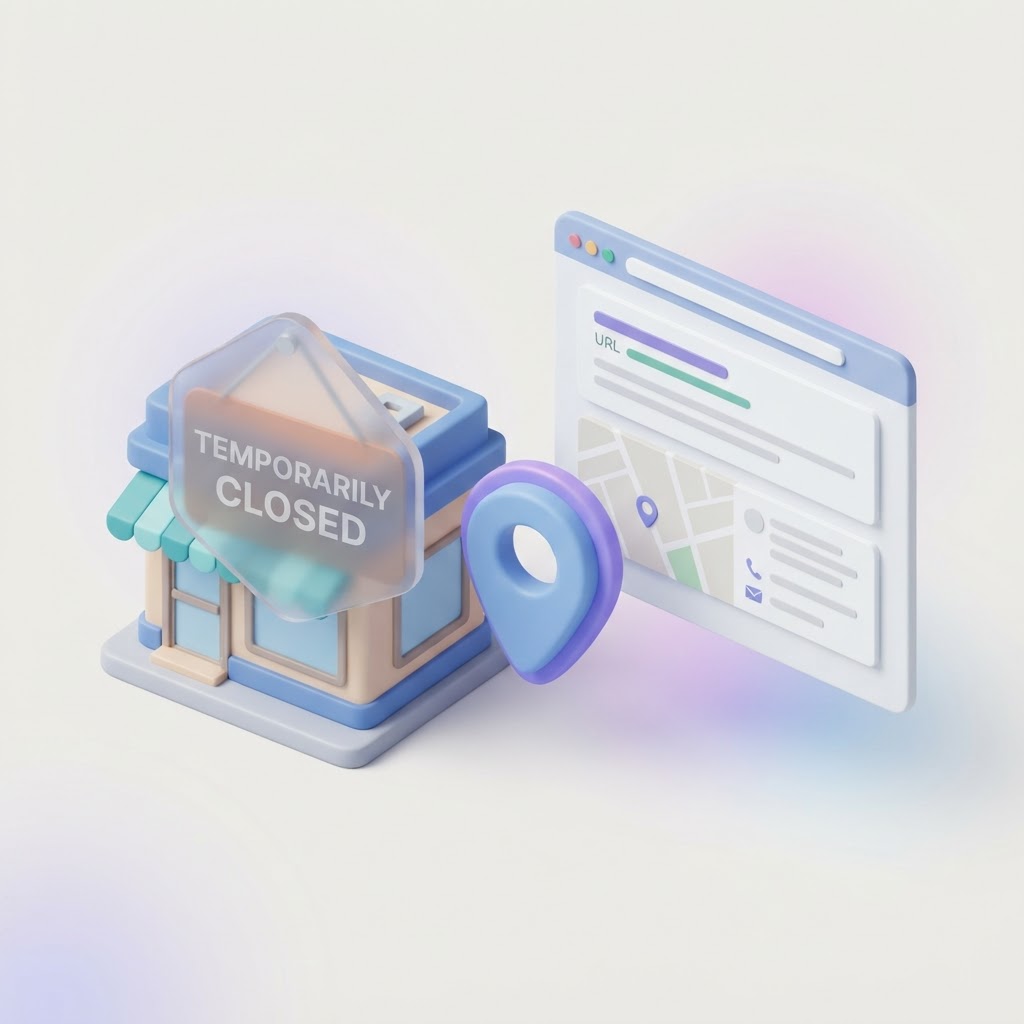
The Candid Truth About Pausing Your Local SEO
If you are closing your brick-and-mortar business for a month-long renovation, a seasonal break, or an unexpected emergency, you have a massive local SEO problem on your hands. Customers are still searching for you. If they drive to your location and find locked doors, they will leave angry reviews. But if you handle your Google Business Profile incorrectly, you could destroy years of search rankings.
Let us get the bad news out of the way first: setting your business to temporarily closed will likely cause a temporary drop in your local search visibility. According to local search data from Whitespark, Google actively suppresses closed businesses in the Map Pack because sending a user to a closed store is a terrible search experience [Whitespark].
See how clearly your website communicates your location and services.
InspectRank reviews your local visibility signals and gives you a clear, prioritized report.
Get My Free ReportHowever, this drop is a protective measure. When you reopen, your rankings will bounce back. If you try to game the system or use the wrong settings, you risk permanent damage. Here is the exact playbook for handling a temporary business closure without losing your local SEO foundation.
The Worst Mistake: Marking Your Business as Permanently Closed
When faced with a temporary closure, some business owners panic and click Permanently Closed just to stop customers from showing up. Do not do this. Marking your business as permanently closed severs your local search trust. Google will drop you from the Map Pack entirely, and when you try to reopen weeks later, you will essentially be starting from scratch. Worse, you risk losing your hard-earned reviews and historical ranking data.
How to Handle Closures Under 7 Days
If you are closing for a quick remodel, a short holiday, or a minor emergency that lasts less than a week, Google explicitly states you should not use the Temporarily Closed feature [Google Business Profile Help].
Instead, use the Special Hours feature. Go into your Google Business Profile, navigate to your hours, and set the specific days you will be closed. This tells Google and your customers exactly when you are unavailable without triggering the algorithmic suppression that comes with a formal temporary closure.
How to Handle Closures Over 7 Days
If your renovation or seasonal break will last longer than a week, you must use the Temporarily Closed status. Yes, your visibility will dip while the label is active, but it is the only way to protect your long-term rankings and customer trust.
Step-by-Step: Marking Your Business Temporarily Closed
- Log into your Google Business Profile dashboard.
- Click on Edit Profile, then navigate to the Business Information section.
- Under the Hours tab, select the Temporarily Closed option.
- Save your changes.
Google may also automatically mark your business as temporarily closed if it detects signals from third-party directories or user reports. If this happens by mistake, you can easily toggle it back to Open, but if you are actually closed, leave it alone.
How to Maintain SEO Momentum While Closed
Just because your physical doors are locked does not mean your digital presence should go dark. Search engines reward active profiles. If you abandon your Google Business Profile for two months during a renovation, Google assumes the business might be dead.
See how clearly your website communicates your location and services.
InspectRank reviews your local visibility signals and gives you a clear, prioritized report.
Get My Free Report1. Post Regular Updates
Use Google Posts to document your renovation. Post photos of the new flooring, the updated menu, or the expanded seating area. This proves to Google that the business is still active and gives your customers something to look forward to. Treat it like a marketing campaign for your grand reopening.
2. Keep Responding to Reviews
You might still receive reviews while closed, either from past customers finally getting around to it or from confused searchers. Respond to all of them promptly. Active review management is a massive trust signal.
3. Update Your Website
Do not rely solely on Google. Add a prominent banner to your website's homepage and contact page explaining the closure, the reason (e.g., exciting renovations), and the expected reopening date. This prevents bounce rate spikes from confused visitors.
The Reopening Playbook
When the dust settles and you are ready to unlock the doors, do not just flip the switch back to Open and hope for the best. You need to send strong activity signals to Google to regain your Map Pack rankings quickly.
First, update your hours and remove the Temporarily Closed status. Next, publish a new Google Post announcing the grand reopening. Finally, encourage your first wave of returning customers to leave fresh reviews. A sudden influx of positive, relevant reviews is the fastest way to tell Google's algorithm that your business is back and better than ever.
Summary: The Closure Decision Matrix
| Closure Duration | Action Required | SEO Impact |
|---|---|---|
| 1 to 6 Days | Use Special Hours | None. Rankings remain stable. |
| 7+ Days | Mark Temporarily Closed | Temporary drop, but recovers upon reopening. |
| Permanent | Mark Permanently Closed | Total loss of local rankings. |
Handling a temporary closure is stressful, but following Google's rules ensures your search traffic will be waiting for you when you return.
Sources & references
See what InspectRank finds on your website
Get a clear report covering website SEO, technical health, local visibility and AI search readiness.
Get My Free ReportRelated guides
Google Business Profile Q&A: How to Pre-Populate Questions to Drive Local Sales
Stop letting random users answer questions about your business. Learn how to pre-populate your Google Business Profile Q&A to control the narrative, feed AI search, and drive local sales.
Reserve with Google: How to Get the Blue 'Book Online' Button on Your Business Profile
Learn how to get the highly visible blue 'Book Online' button on your Google Business Profile using Reserve with Google, plus troubleshooting tips if your button is missing.
Disaster Recovery SEO: Managing Your Google Business Profile After a Fire, Flood, or Hurricane
Learn how to manage your Google Business Profile and local SEO after a fire, flood, or hurricane to protect your rankings and communicate with customers.

Google Business Profile Products: Why Service Businesses Should List Services as Products
Stop hiding your best work in a text menu. Learn why service businesses should use the Google Business Profile Products feature to drive more clicks, build trust with images, and increase conversions.

Google Local Guides: Do Their Reviews Impact Your SEO More Than Regular Customers?
A Local Guide badge doesn't magically boost your rankings, but the way these users write reviews absolutely impacts your local SEO. Here is why their feedback matters more.